

Building your first EQQ query takes under ten minutes. This walkthrough assumes you have the Extended Edition and at least one database connection under Settings → Database.
How to create a View that controls what users see
A View is a governed projection of one or more tables. EQQ supports two View types: an Imported View maps directly to an existing database table or view, while a Created View lets you define a custom column set with joins and filters in the EQQ designer. Go to Manage Views → New View, pick your database, choose the type, and select the tables and columns end users are allowed to see.
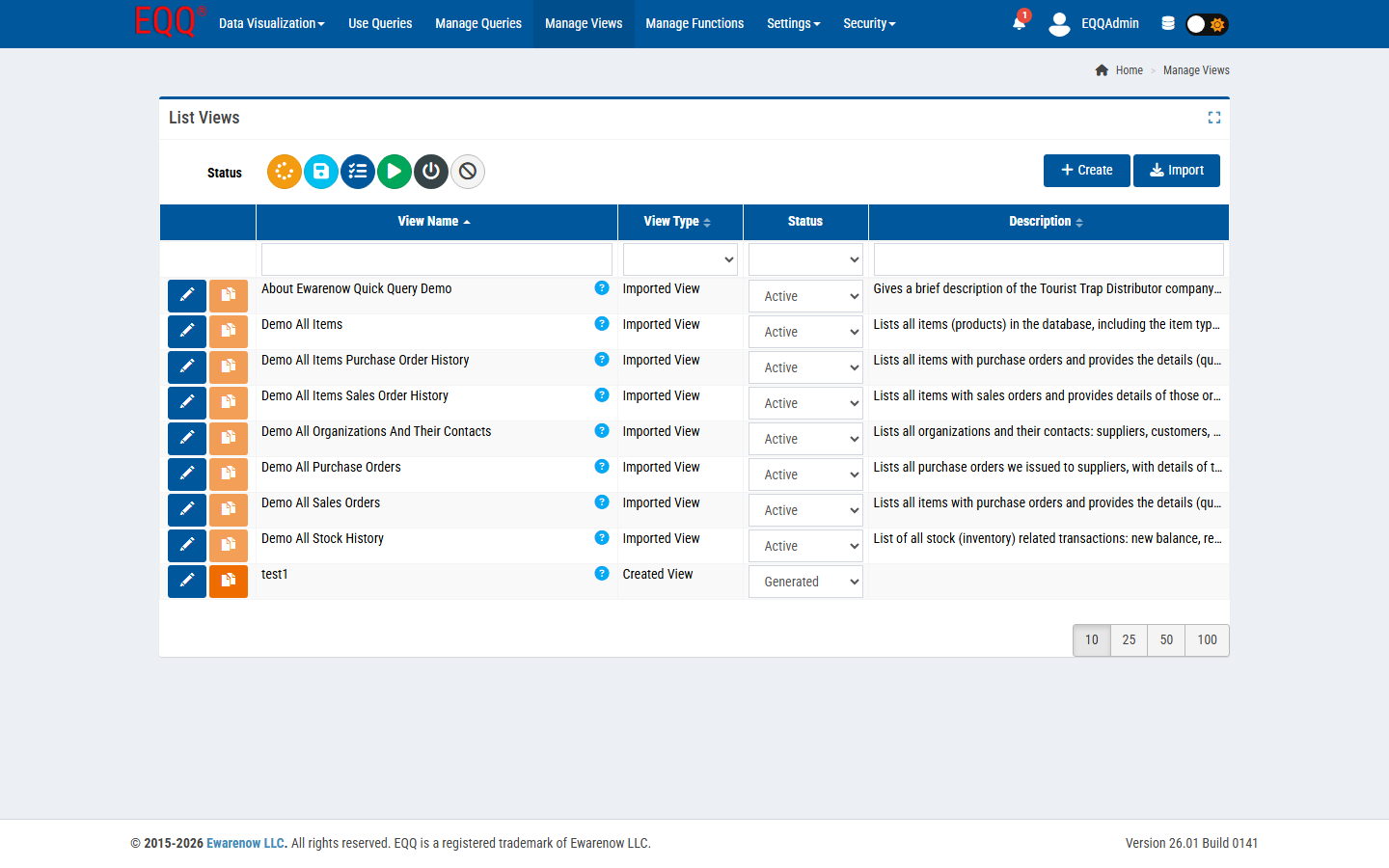
How to build a parameterized Query end users can run
Open Manage Queries → New Query, pick the View you just created, drag columns into the output, and add filters or sort orders from the toolbar. Use @ParameterName (SQL Server) or :ParameterName (MySQL/PostgreSQL) to make runtime inputs.
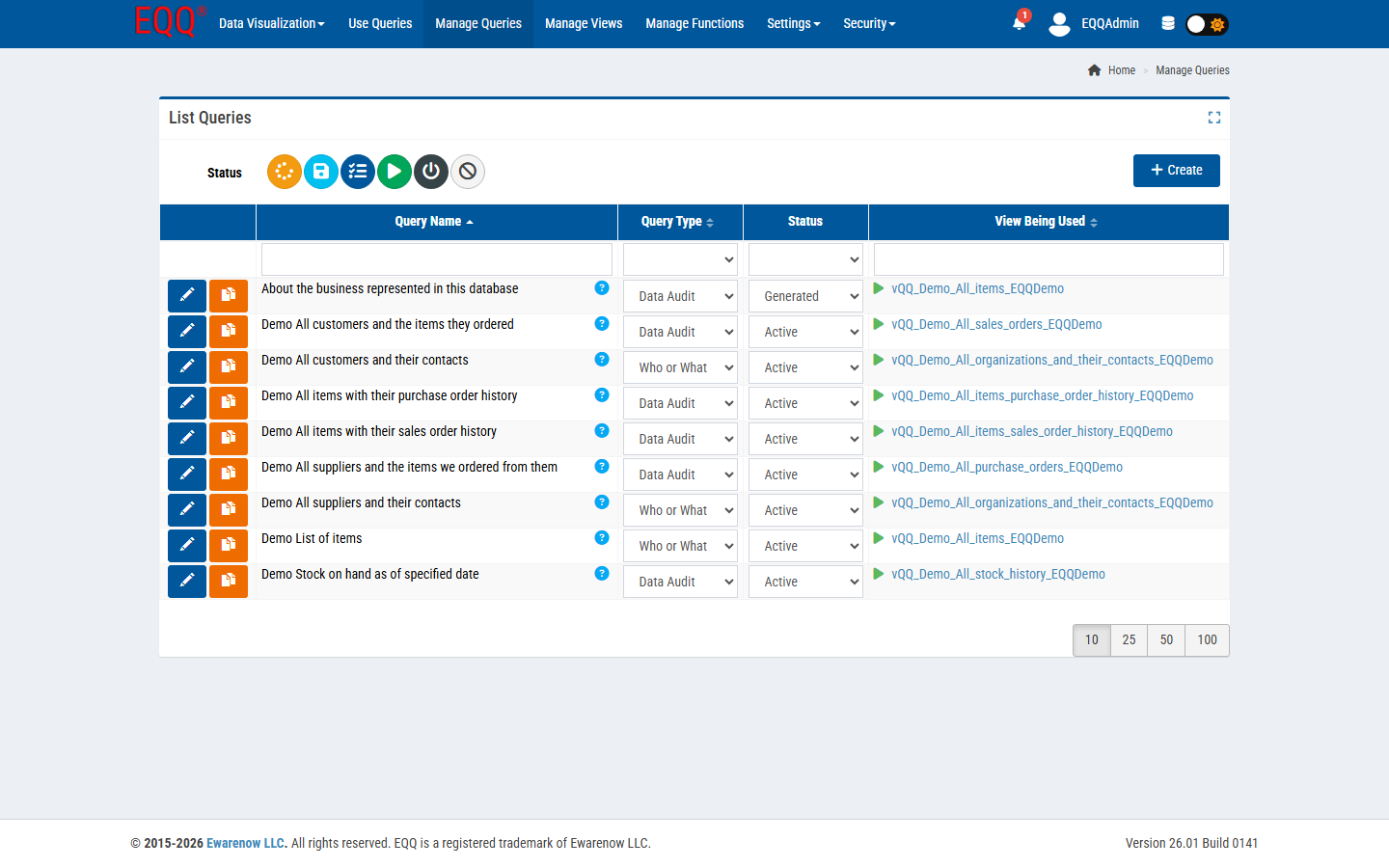
How the query lifecycle keeps work-in-progress hidden from end users
EQQ queries progress through states: In Process → All Saved → Generated → Active. Only queries in Active appear to end users. This is intentional - it lets a data steward iterate without exposing half-finished work. Queries that are no longer needed can be moved to Inactive or Void to remove them from the active pool without deleting the audit record.
How to grant the right roles so users see exactly what they need
Under Security → Roles, give a role like Finance Query User the permission to run your new query. Assign that role to the users who need it. They will see the query in Use Queries the next time they sign in.
How to verify end users can run the query without IT help
Have an end user open Use Queries, pick your query, fill the parameters, click Run. Watch the grid populate. You just shipped a self-service data product in minutes.
Want more Information?

Ewarenow
Related Posts
-

-

Close Month-End Faster With EQQ
Jun 19, 2026 -


